
This article deals with Post Processing Override Scenarios.
Global post-production settings aren't always the best for a scene with a wide variety of lighting conditions. Perhaps certain settings are ideal for an outdoor scene, but no longer work as soon as you enter a cave. In this case, global PostProcessing settings can be very helpful. By adding, you overwrite volumes and edit them with your own settings. The global settings of the PostProcessing modules can be adapted strategically with these overrides.
Recommended Unity versions:
min. two
Process override scenarios
The global post-production settings aren't always the best for a scene with one
Variety of lighting conditions. You should be able to tweak, adjust, or add additional post-processing effects. This skill can be very useful. For example, you can decrease or increase the saturation level. Exposing a dark interior space is a great way to use these post-processing adjustments to improve visibility in different lighting conditions.
2. Setting up the volume profile
You can configure post-processing by creating a volume profile
Effects like Bloom, Film Grain, Lens Distortion and more. Use the
recommended component settings.
Make sure the volumes are set correctly.
1. Add an empty GameObject to the scene.
2. Click on the GameObject and add a volume component.

3. Next, add a Box Collider to the GameObject to define the area in which the GameObject is located.
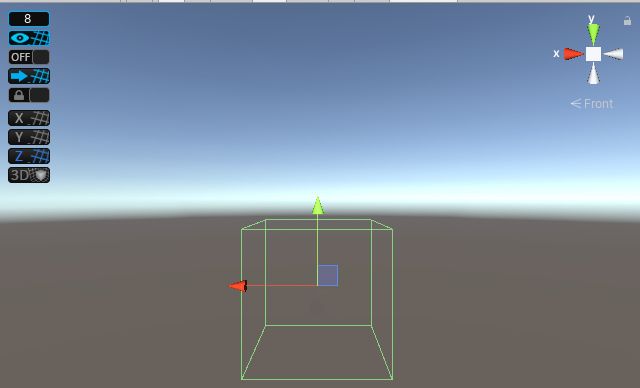
The post processing volume will be overwritten.
4. Add the necessary changes, e.g. B. the thickening of the volumetric mist, or
Change the exposure or bloom.
You have now successfully added a second post-processing volume to your scene.
Adding post-production volumes to your scene is helpful. To determine this, it makes sense to add different post-processing effects depending on the location of the viewer. The ability to tweak and customize your volumes will help you create
immersive experiences for your users. Experiment with reworking volumes and discover how minor changes can affect them
Originally posted on 2020-03-01 12:43:03.


