

This post explains how to organize your Unity project.
Create project folder Projects in Unity often contain many types of files. The amount of itThe number of assets typically increases dramatically as a project grows. New users often describe struggling to find a specific object in a scene or an asset in a large project. With targeted organization, you can prevent your Unity projects from becoming cluttered and overwhelming. It also makes navigation easier. Unity assets are not file-path-specific, meaning you can move objects freely. You can create a new folder and organize your "Assets," for example, without losing any references.
Right-click in the project window and click Create> Folder.
Give the folder a descriptive name referring to what it will contain.
Click with the left mouse button and drag the corresponding object types into the folder. Project folders can also be freely moved and nested under each other. Folders.

Group objects in the hierarchy window
Complex scenes often have a very long list of objects in the hierarchy. Empty GameObjects can be used to group common objects.
- Right click in the hierarchy and choose CreateEmpty.
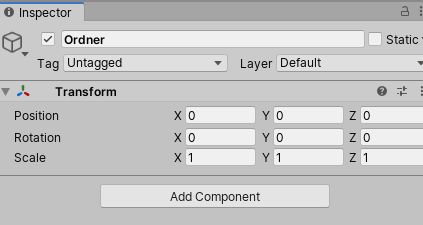
Rename the GameObject in the Inspector to name it after the group. - Reset the transformations so that they show up at 0, 0, 0.
- Alternatively, you can move the GameObject to an area in the scene that would represent the corresponding pivot point of the group
- Select all objects that should be grouped above the GameObject in the hierarchy window

Originally posted on 2020-03-22 20:27:00.